Overview of the interface
The primary interface consists of three parts.
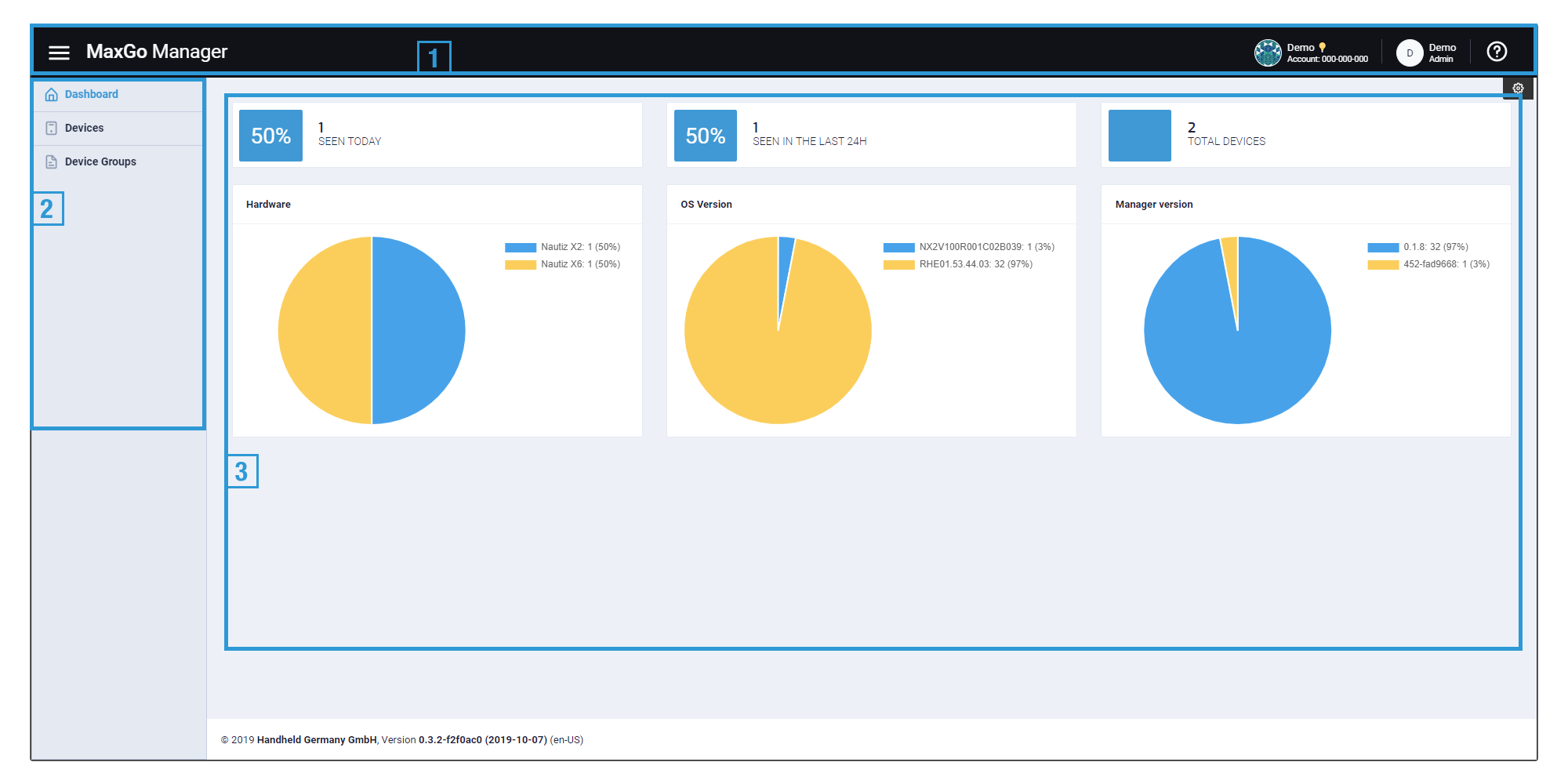
Section 1 - Header bar
This is the header bar consisting for 5 parts. On the left you find a icon that lets you minimize the menu panel. Next to that, you find the title of the current page. Over on the right, you find 3 more controls. The first one shows your current account name and id. You can click on the information to switch to a different account, manage your accounts or create a new one. Next to the account information you find the name and role of the currently logged in user. The role shown here always refers to the currently active account. Click on this element to change your profile and log out. The last element allows you to open this help page from anywhere.
Section 2 - Menu
This is the menu panel. Use this to navigate to the different primary parts of the manager. The number of entries available to you can depend on the access role you have for the currently active account
Section 3 - Content
This part contains the actual content. Please check the menu to the left for more details on each screen.