Device details
The device detail page contains all the information for the selected device 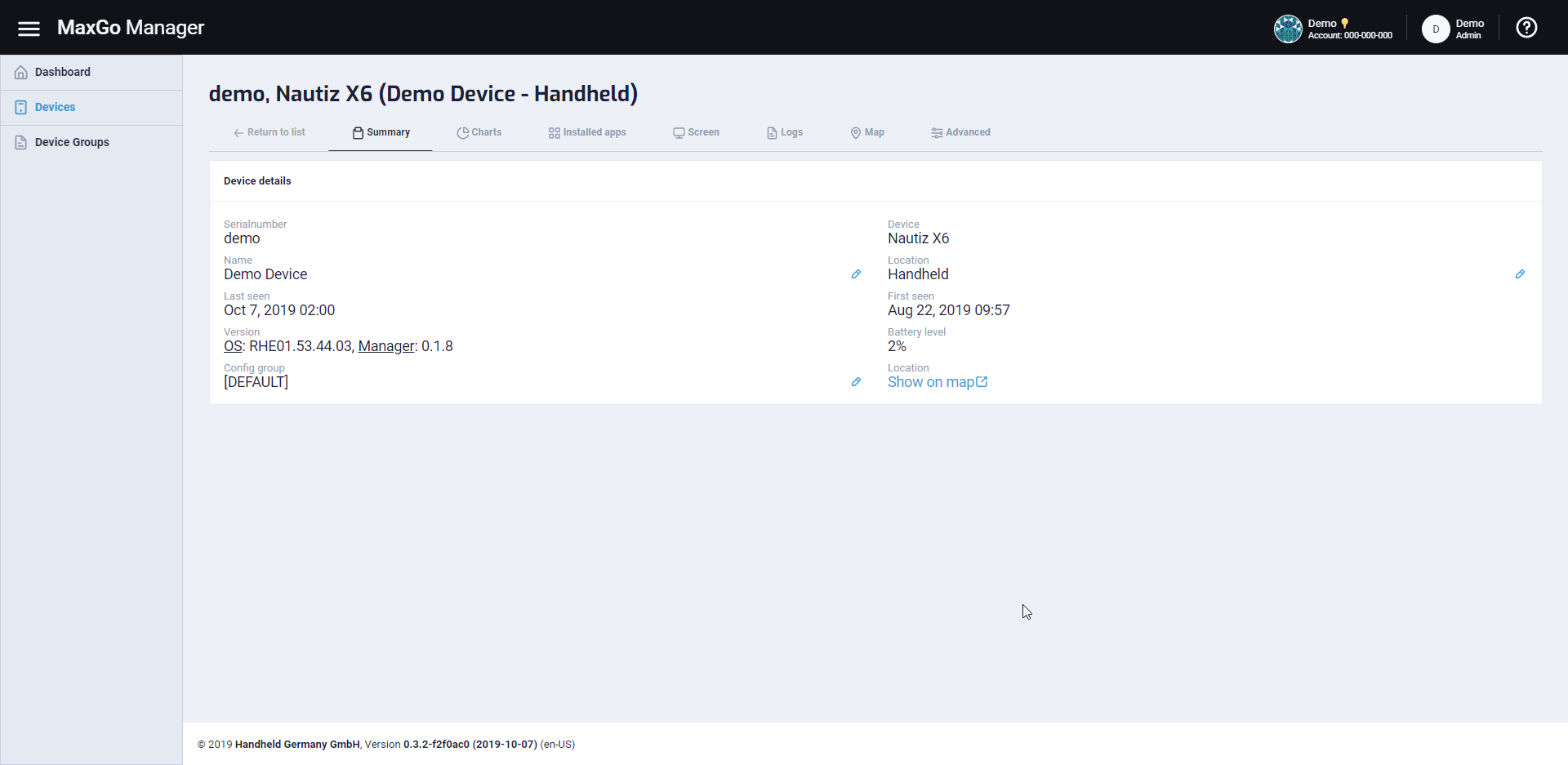 The information is organized into different tabs shown below the device serial number and name.
The number of tabs available can depend on the device, account settings and user role.
The information is organized into different tabs shown below the device serial number and name.
The number of tabs available can depend on the device, account settings and user role.
Tabs
Below you find a details description for each of the available tabs. Return to list Click this to return to the device list
Summary
This tab gives you an overview of the current device status. It shows the serial number and hardware as well as the first and last time the device contacted the server. You can also see the currently installed OS version, the version of the manager app and the current battery level. The “name” and “location” fields can be used by you to organize the devices and both support any text input. Click on the small pen icon to the right of the value to edit them. The last information shown on this page is the config group this device is assigned to. You can also change the group with the pen icon.
Attention
Please note that changing the device group will instantly apply the configuration for the new group to the device!
Charts
The charts tab gives you a historic overview of several device values. 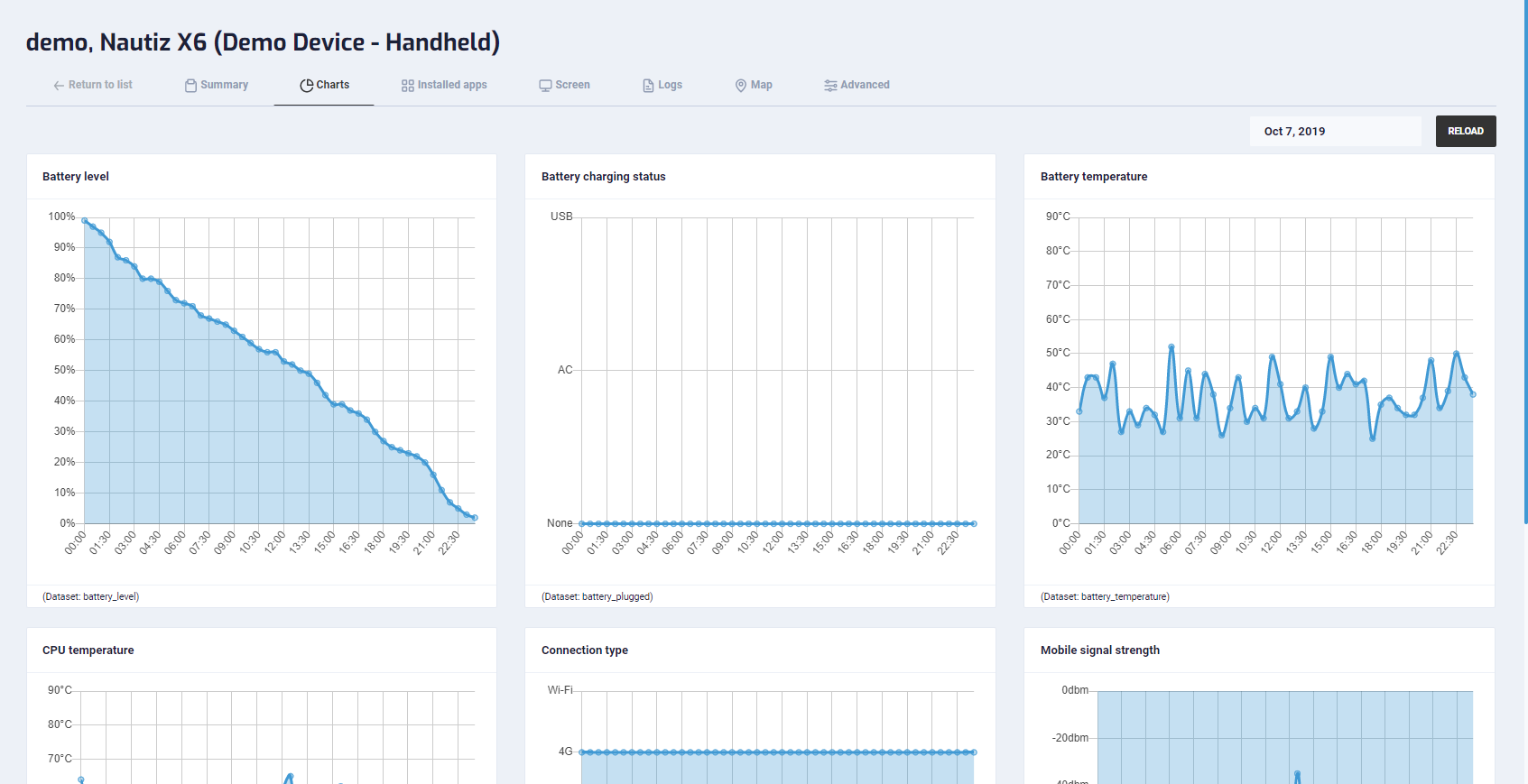 On the top right, you can select any past date to see details recorded on that day. After a while, past data will be deleted automatically from the system.
Installed apps
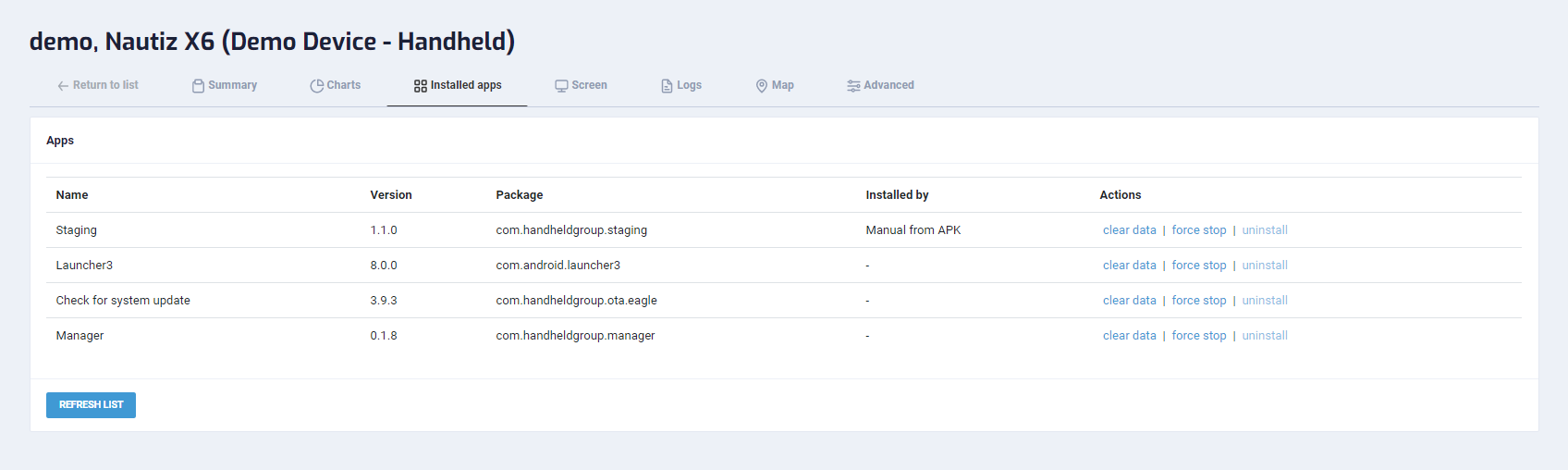 This tab shows you all the apps currently installed on the device. You can use the actions to the right to trigger different commands on the unit:
- “clear data” will stop the app and delete the app data. The app will behave like is was installed for the first time on the next start.
- “force stop” will stop the app but will not modify any data.
- “uninstall” will remove the app and all it’s data from the device completely.
Screen
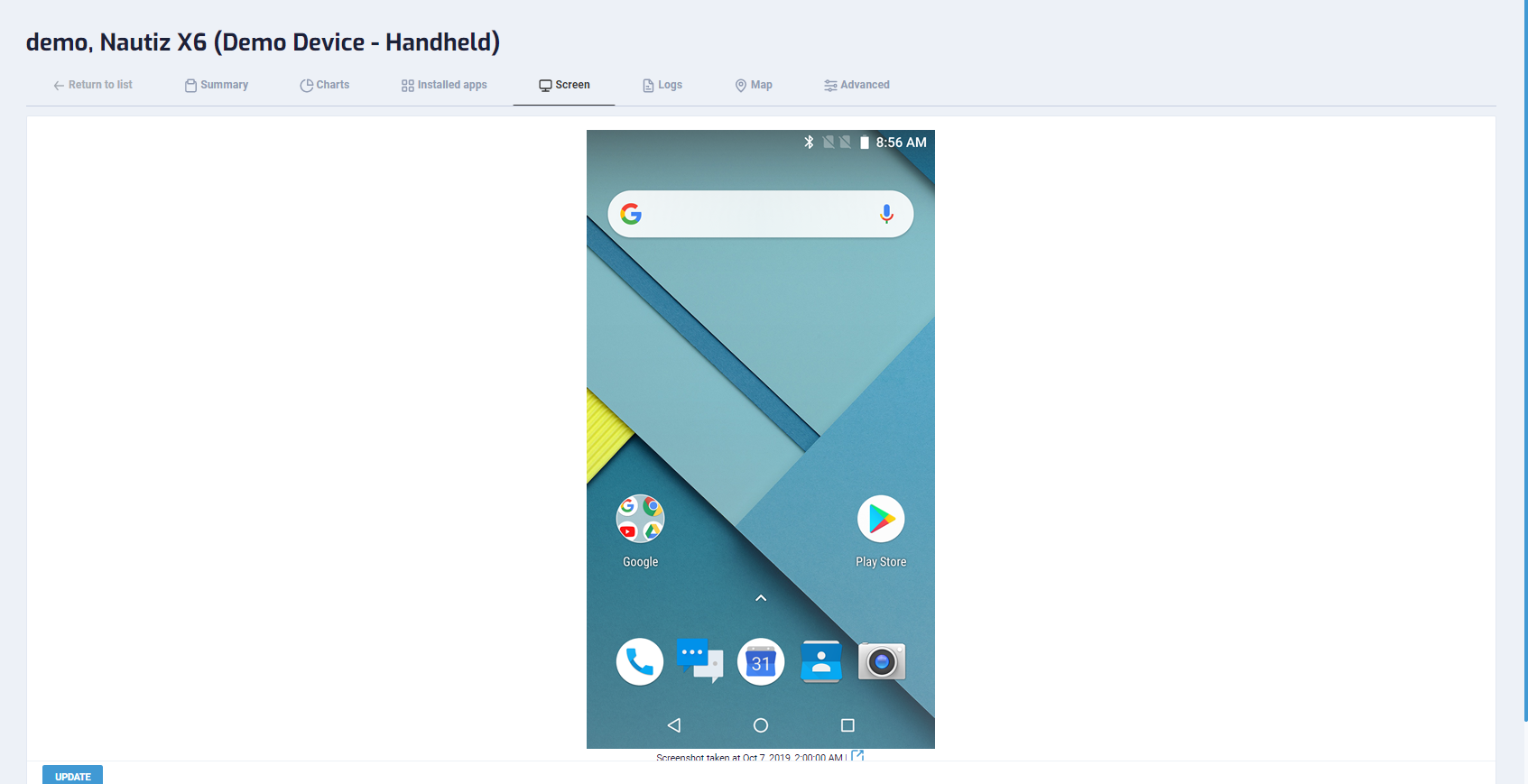 Here you see a screenshot from the device. If there is no past screenshot, the system will ask the device to take one immediately.
At any other point, you can request a new screenshot by clicking the “Update” button.
Depending on the network speed of the device, it can take a while to upload and process the new image. Please wait at least 1-5 minutes for the new screenshot to appear.
Hint
This function will not wake the device from standby so it is possible to receive a empty (black) screenshot.
Map
This tab shows you the location history of the device for a given day. You can look at other days by changing the date in the top right.
Advanced
This tab allows to trigger several commands on the server and/or the device
- Delete device history data will remove the past records of this device in the Manager. This will affect any data shown in the charts tab
- Remove device from Manager will remove the device and any history data from the Manager. If the device is still set up with this account, it will show up again after the next reporting interval
- Wipe device data/factory reset will perform a factory reset on the device. This means that all data and settings will be deleted on the device before the device reboots.