Config groups
The config groups are the primary way to install apps, apply settings and run commands across multiple devices
Each account starts with a default groups (called [DEFAULT]) to which every new device is assigned to when it first connects to an account.
You can create as many groups as you need and build them in a hierarchical structure where each child will include the configuration of all its ancestors.
The configuration in a group will also always overwrite the same setting of its parent!
Of course you can also create a group without a parent to build a completely unrelated configuration.
Configuration types
There are different types of configurations:
System setting
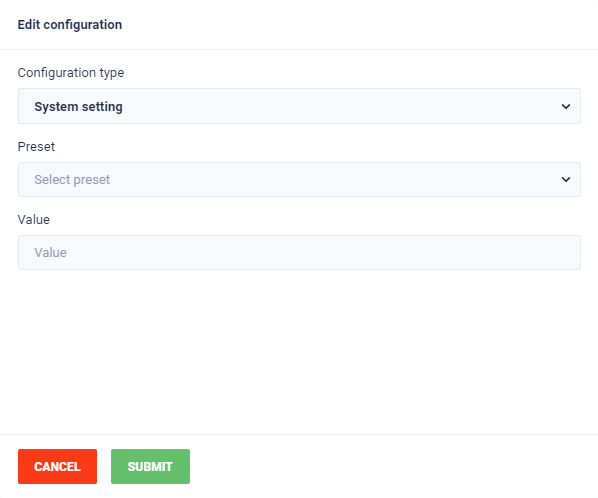
This configuration allows you to change the system settings on the device.
Select a setting from the preset list or enter a custom one into the Global, System or Secure group.
App installation
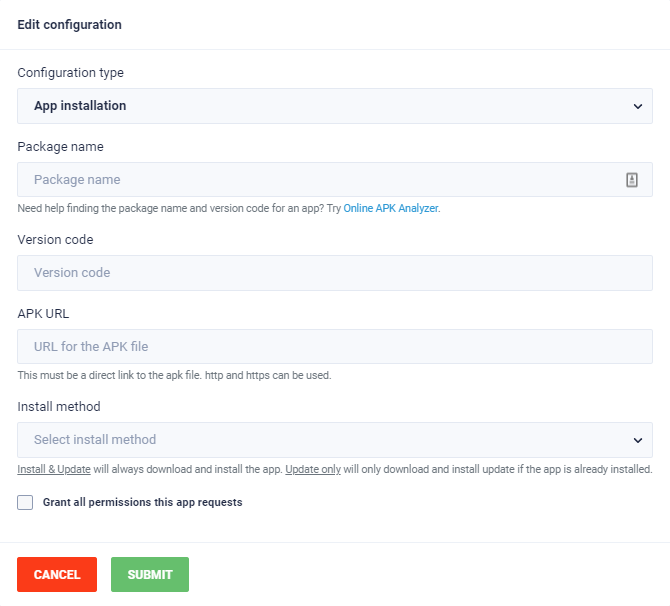
This configuration allows you to install or update apps.
You have to provide the following details.
Package name: The internal package name of the app
(You can find that value by analyzing your APK here)Version code: The numeric internal version code of the app
(You can find that value by analyzing your APK here)APK URL: The URL where the Manager can directly download the app’s APK file from
(You can’t place a link to the Play Store here!)Install method: Select Install & Update to always install the ap and Update only to only install updates if the app is already installed on the device.
Grant all permissions this app requests: Check this to allow the app access to all it’s permissions after installation (The app still has to be started manually for it to actually be able to do anything)
Run remote Staging script
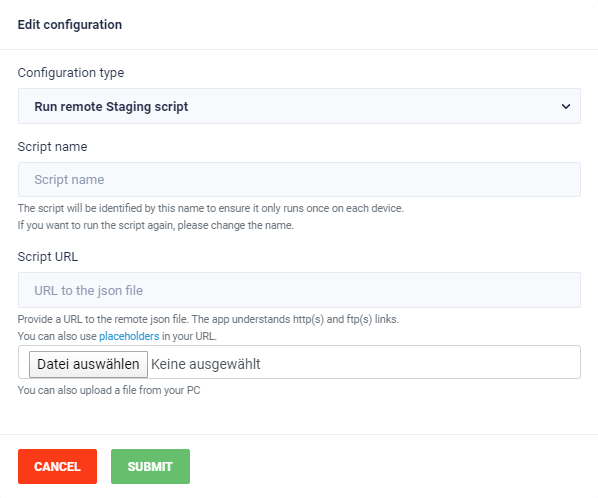
If you already have built a configuration with Staging you can export you project as a remote script and use it here.
The Script name must be unique and will ensure that the script is only executed once. Make sure to change the name if you update the remote script so it can be executed again with the changes.
Client setting
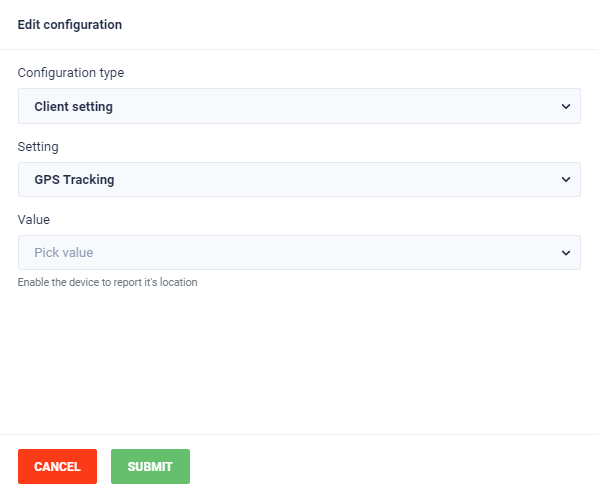
Change different settings inside the Nordalp Manager app. Select any setting to see a explanation on it’s use.